 MoreFrame
Loop the moment you are polishing
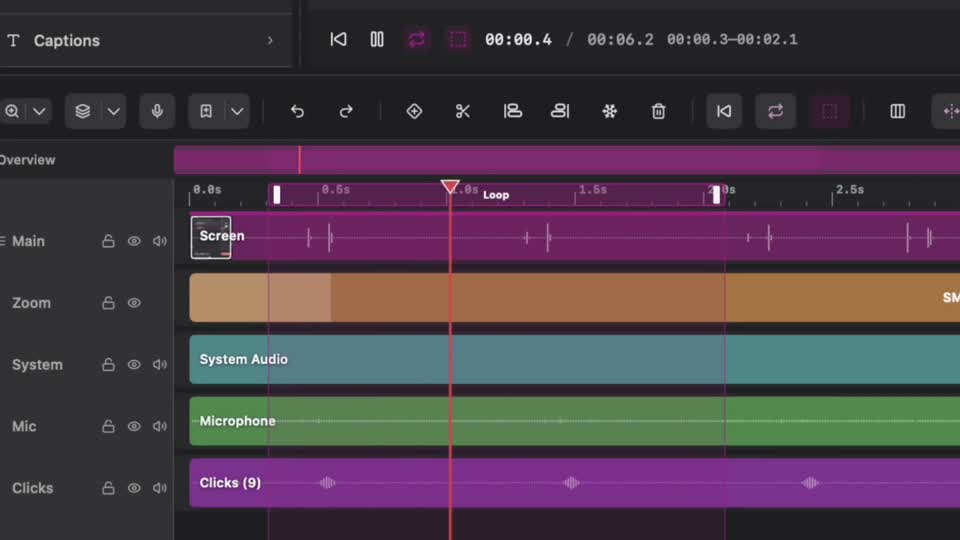
MoreFrame can loop the whole project or just the section you are refining. The same play area drives preview looping and optional export.
Set a play area
Use any of these:
- Click the dashed play area button on the timeline transport, then drag the timeline ruler to set the range. Press Esc to cancel.
- Press I at the start and O at the end. Loop turns on automatically.
- Select clips on the timeline, then choose Loop selection from the play-area menu.
- Right-click the timeline ruler for more play-area commands.
Click the play-area button again to clear the range. The skip-back control jumps to the start of the play area (or the project start when none is set).
Loop preview
Press ⌘L or click the loop button on the transport. When a play area is active, preview repeats only that window. With no play area, preview loops the full timeline.
This is the fastest way to judge a transition, caption timing, or zoom before you export.
Export the same window
Open Export and turn on Export play area only when you want a highlight reel, B-roll clip, or short web animation instead of the full project.
GIF and animated WebP use the play area when one is set. Turn on Loop animation in Export when the file should repeat. Those formats are limited to 15 seconds — shorten the play area first if a card is disabled.