 MoreFrame
Use the timeline
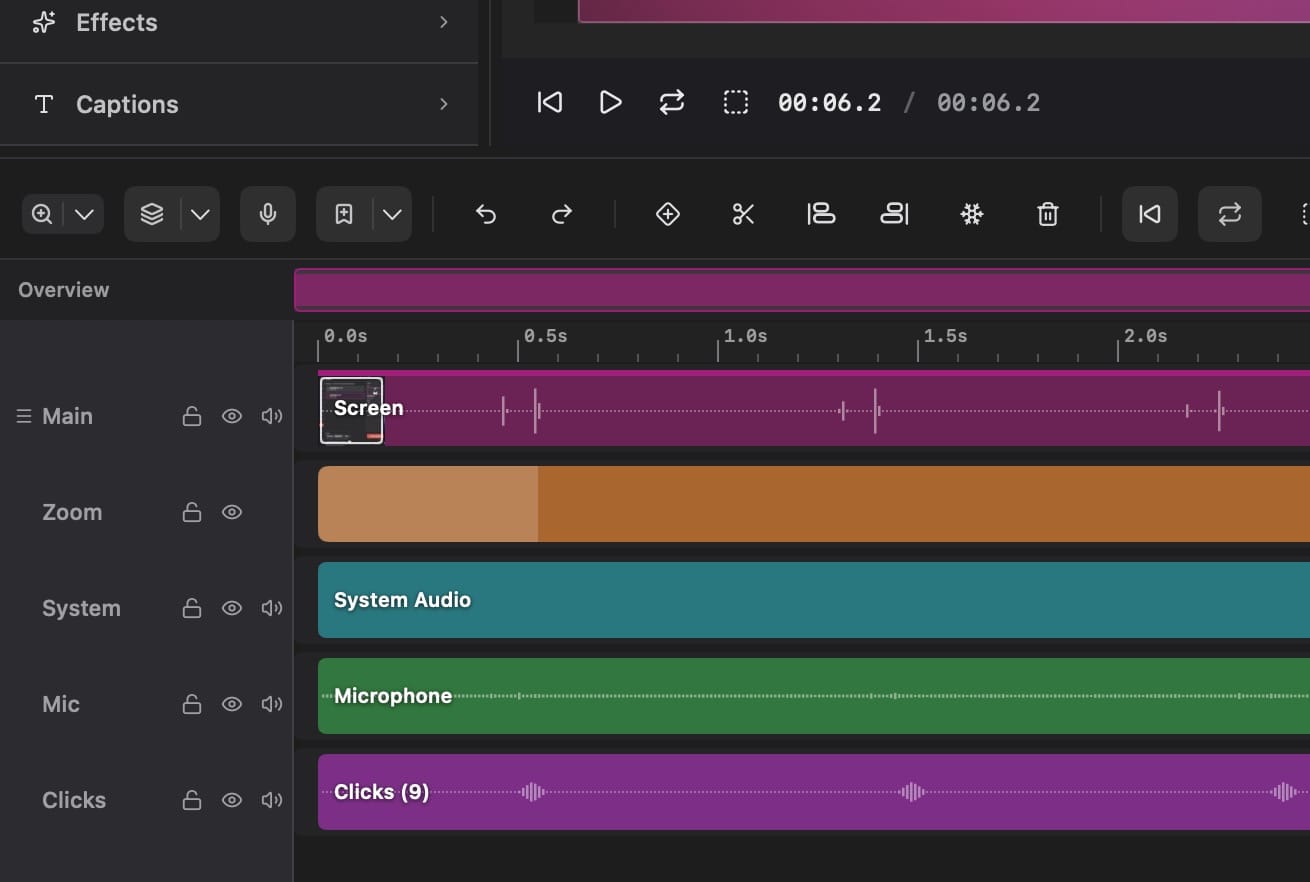
Each kind of clip has its own lane: Main, B-roll, Camera, Captions, Mic, System, and the rest.
- Split at the playhead (B, or Edit).
- Speed a clip from 0.25× to 8×. Turn off Change pitch if you want the voice to stay natural. See the speed guide.
- Freeze Frame holds a still. Reverse plays the source backward.
Loop a section
Set a play area on the timeline transport, press I and O at the in and out points, or drag the ruler. Press ⌘L to loop that window in preview — or the full project when no play area is set. The same range can drive Export play area only for highlights and short GIF or WebP clips. Loop guide →
Freeze and spotlight a detail
Place the playhead on the moment you want to hold, then choose Freeze Frame. The still becomes its own timeline clip, so you can extend or shorten the pause.
To keep one area bright while dimming the rest, add or select a shape and turn on Invert in Layout. Adjust Dim and Feather. On a video plate, Invert is in Appearance.
Select the cut between Main clips to add a blend, swipe, or lens transition.
Select several clips to change speed or volume together, or to group them.