 MoreFrame
Change clip speed
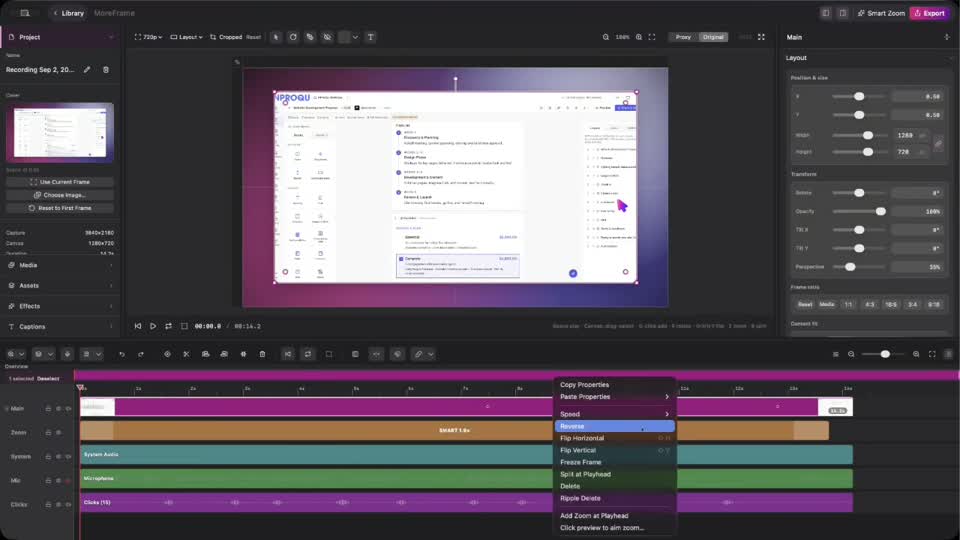
Select a clip on Main, B-roll, Camera, or another video lane, then open Playback in the right inspector.
Set the speed
- Tap a preset: 0.5×, 1×, 1.5×, 2×, or 4×.
- Drag Speed from 0.25× to 8× for anything in between.
- Turn off Change pitch when you want a faster or slower take without the chipmunk effect. Leave it on when the pitch should rise or fall with the speed.
Reverse and Freeze Frame live in the same panel when the clip supports them.
Edit several clips at once
Select multiple clips on the timeline and change speed or volume together. This is useful when you trimmed a section and want the whole beat to move faster.
With Linkage on, a speed change can ripple later clips and Smart Zoom blocks on the same lane so the timeline stays packed. Turn Linkage off when you only want to stretch one clip in place.
Where speed shows up
Speed affects preview, export, waveforms, and captions tied to that clip. Slow motion and time-lapse are timeline edits — you do not need a separate effect layer.